QR Code Generator Add-In for SharePoint

Using this you can generate QR Code for any text value and URL, this add-in can be add anywhere in you SharePoint Dashboard. Below you can see step by step instructions to develop this SharePoint Add-In. Also the complete project source code is available for download, find the download link at the bottom of this post.

2016-01-26_21-30-19

Create new Project in Visual studio using “App for SharePoint” template, here I’m using visual studio 2015 version. In the new project wizard select SharePoint-Hosted and rest you can select based on your requirements. Provider-Hosted application can also be selected.
I’ve added two JS files qr.js and initstrings.js, these JS files are developed by Microsoft. Here I modified those files. Modified files can be found in the project.
2016-01-26_18-44-22
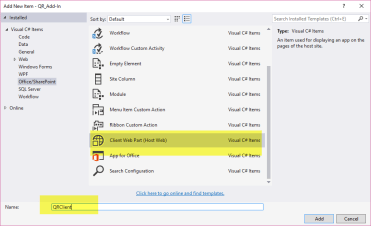
Add new “Client Web Part (Host Web)” and select “Create a new app web page for the client web part content”, Edit newly created aspx page which is located in the Pages folder. Add below JS code and HTML. In the JS function I am passing Textbox value and Div name as parameter, JavaScript will generate QR code based on the content in Text box value.

 <script type="text/javascript">
 function generatefn() {
 if ($('#QR_URL').val() != '')
 onLoadQrCode($('#QR_URL').val(), 'DivImage');
 }
 </script>
 <input type="text" id="QR_URL" value="" style="width:250px" /><input onclick="generatefn()" type="button" id="btnGenerate" value="Generate" />
<div id="DivImage"></div>

Project source Download link

zip_icon https://code.msdn.microsoft.com/QR-Code-Generator-Add-In-a4cdd884

Provider Hosted App For SharePoint Online

Create a new project in visual studio using “App for SharePoint” template, here I’m using visual studio 2015 version. After selected project can see a wizard

2016-01-24_10-20-52

Enter SharePoint online URL and select “Provider-Hosted” option next it will ask for user name and password, then wizard will automatically select “SharePoint Online” Option

2016-01-24_10-26-11

Next select ASP.Net MVC Web Application in the wizard

2016-01-24_10-29-44

Next leave by default selection of “Use Windows Azure Access Control Service (for SharePoint Cloud Apps)” then finish the wizard.

Create new razor view under home view folder

2016-01-24_12-02-36

Add new ActionResult in HomeController.cs, below code will retrieve list items from the “Shared Documents” and generates a DataTable. pass the DataTable to View.

 public ActionResult DocumentList()
{
DataTable dt = new DataTable();
var spContext = SharePointContextProvider.Current.GetSharePointContext(HttpContext);
using (var clientcontext = spContext.CreateUserClientContextForSPHost())
{
List list = clientcontext.Web.GetList(spContext.SPHostUrl.ToString() + "Shared Documents");
clientcontext.Load(list);
CamlQuery cq = new CamlQuery();
ListItemCollection lic = list.GetItems(cq);
clientcontext.Load(lic, items => items.Take(15).Include(item => item["FileLeafRef"], item => item["Modified"],
item => item["Author"], item => item["FileRef"], item => item["File_x0020_Size"]));
clientcontext.ExecuteQuery();
dt.Columns.Add("File Name");
dt.Columns.Add("Modified", typeof(DateTime));
dt.Columns.Add("Author");
dt.Columns.Add("Size");

foreach (ListItem item in lic)
{
DataRow dr = dt.NewRow();
dr["File Name"] = "<a href=\"" + spContext.SPHostUrl.ToString().TrimEnd('/') + item["FileRef"]
+ "\">" + item["FileLeafRef"] + "</a>";
dr["Modified"] = item["Modified"];
dr["Author"] = ((FieldUserValue)item["Author"]).LookupValue;
dr["Size"] = item["File_x0020_Size"];
dt.Rows.Add(dr);
}
}

return View(dt);
}

Add below code to your new view, code will generate a HTML table using our ModelTable.

<div style="padding:5px 10px 3px 5px">
<table border="1" cellpadding="5" id="my-table">
<thead>
<tr>
@foreach (System.Data.DataColumn col in Model.Columns)
{
<th>@col.Caption</th>
}</tr>
</thead>
<tbody>
@foreach (System.Data.DataRow row in Model.Rows)
{
<tr>
@foreach (var cell in row.ItemArray)
{
<td>@Html.Raw(cell.ToString())</td>
}</tr>
}</tbody>
</table>
</div>

View name and action result name should be same else mention the view name in the return statement of action result.

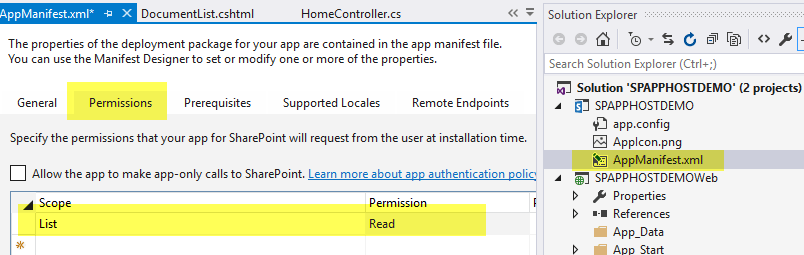
In the AppManifest file select the permissions tab and Scope as list and permission as Read

2016-01-24_14-10-05

Run the project in visual studio using play button (F5), now can see SharePoint App Permission approval page, select Documents list then click “Trust it”

2016-01-24_14-13-02

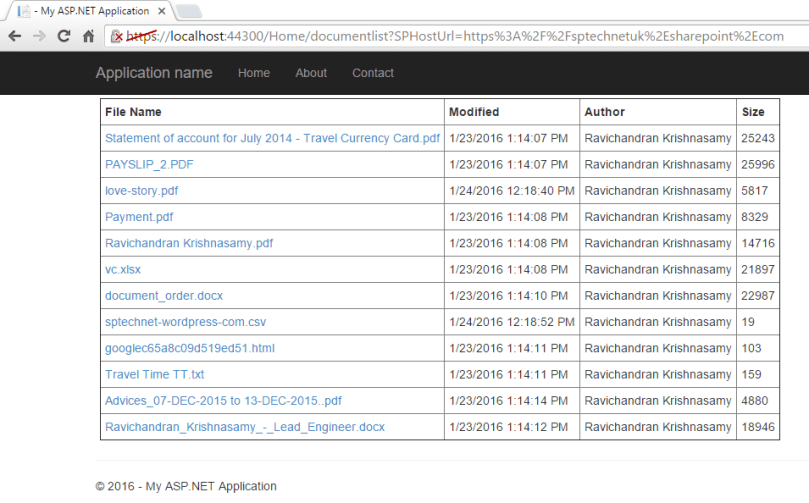
After that SharePoint will redirect to our local hosted site, navigate to newly created view page. Page will display SharePoint list data.

2016-01-24_14-40-48

You can now compare your retrieved data with the actual SharePoint list.

2016-01-24_14-41-22

JQUERY BASICS – Part 1

jQuery is a fast, small, and feature-rich JavaScript library. It makes things like HTML document traversal and manipulation, event handling, animation, and Ajax much simpler with an easy-to-use API that works across a multitude of browsers. With a combination of versatility and extensibility, jQuery has changed the way that millions of people write JavaScript.

jquery-logo

In jQuery all the codes starts with “jquery” it’s kind of a door, but when we write some long functionality we can see lot of jquery terms in the code. We don’t really want to repeat it everywhere, instead of “jquery” we can use “$” symbol.


jquery == $

Ex, below are two methods that return the same o/p. In this example we write hello world in the browser console (F12 shortcut key to open browser console window) after the page load.


jQuery(function () { console.log('hello world'); });

OR

$(function () { console.log('hello world'); });

Selectors

We can use CSS3 Selectors for selecting particular tag or set of tags from the page.

Ex,


<html> <head>
<style> p { background-color: #ffc022; } </style>

 </head> <body>
<div id="container">
<h1 class="Info">Introduction</h1>
<a href="/newpage">move to the new page</a></div>
</body> </html>

In the above HTML code we call div using id, in this method id should be unique,

$(‘#container’)

Values for class be repeated and have multiple space-separated values

$(‘.Info’)

Adding and Removing CSS class

After selecting using selector we can add or remove CSS class using below methods

$( "p" ).addClass( "newClass onemoreClass" )

$( "p" ).removeClass( "newClass onemoreClass " )

Events

In the jQuery we can call events in varies ways, in below method we add a function within click event. We have lot of events available in jQuery.

$( "#butSave" ).click(function() {

alert( "Handler for .click() called." );

});

Another method, here we are attaching the event into a button.

$( "#btnSave" ).on( "click", function() {
alert( "Handler for click called using event attach method " );

});

Below code will remove the event attachment from button.

$( "#btnSave" ).off( "click", function() {

alert( "Handler for click is removed" );

});

Below code will fire only once, there is some other event attaching methods also available in jQuery

$( "#btnSave" ).one( "click", function() {

alert( "Handler for click called using event attach method " );

});

Selecting right version of jQuery

There are two major release available in jQuery, one is 1.x and another is 2.x. Select 1.x version if you want to support your application in IE 8 and the below version browsers,else select 2.x.