Step 1
Navigate Central administration –>Under System Setting –>Click Manage Service in Server and then make sure Business Data Connectivity Service is started.
Step 2
Open SharePoint Designer 2010 then connect home site then Click “External Content Types” on the left side quick launch button and then click top of External Content Types ribbon button

Step 3
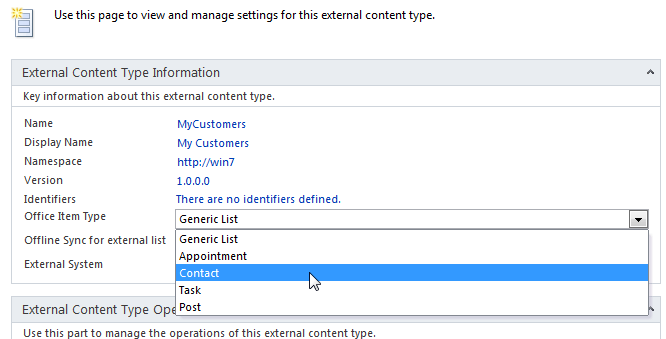
On the External data content information types enter new name and new display name then choose office item type is predefined type of list ,we just choose a contact list then we can also use this for outlook .
step 4
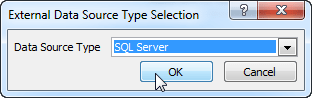
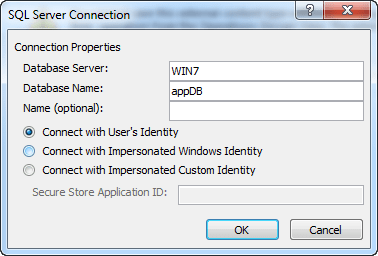
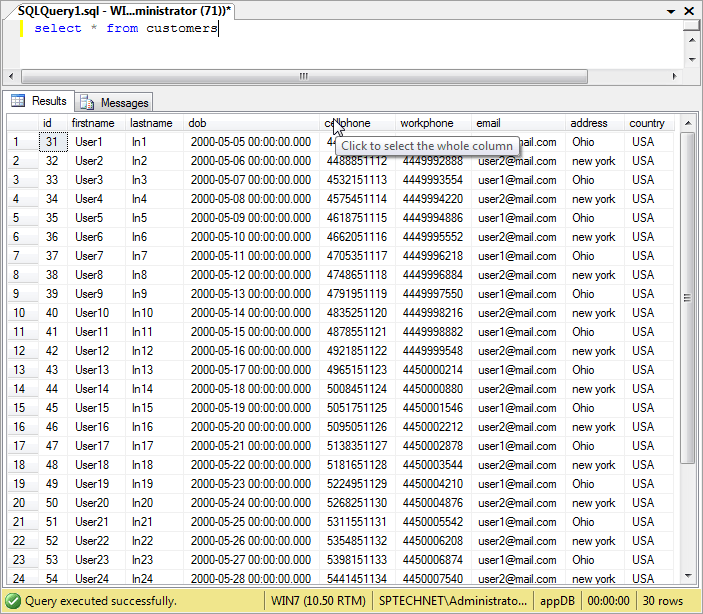
Click the link of “Click here to discover to external data sources and define operations.” then select a connection type of sql and give the database details .

step 5
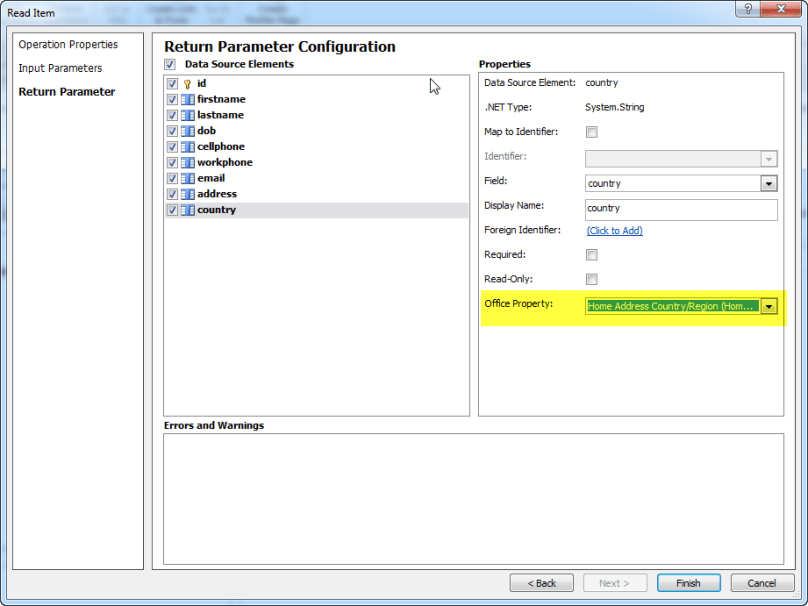
Once connected database then we can see the tables then right click the table select “New Read Item Operation” we have one wizard ,in the wizard return parameter section we just map the office property then click finish button.select create Red List and other all do in vise versa and then click save.

step 6
Navigate Site Actions Click more Options then select and create the external list ,select data external content type then pick the our new data source then click create.
now we can see the SharePoint External Data List.




 Ravichandran Blog