Step 1:
Navigate Site Actions–>Site Settings –>under Galleries–>Click Site Content Types and then click Create Button.

Step 2:
In the Select parent content type from list, select Document Set Content Types and then click OK.

Step 3:
On the Site Content type Advanced Settings page, select Upload a new document template, and then click Browse to browse to and select the document template you want to assign to the site content type. A document template choose can be any file such as an Excel spreadsheet, a Word document or template, a PowerPoint slide presentation, etc.And then click OK.


Step 4:
In the Document Library Setting dialog under General Settings, click Advanced Settings.In the Content Types section, click Yes for Allow management of content types and then click OK.

Step 4:
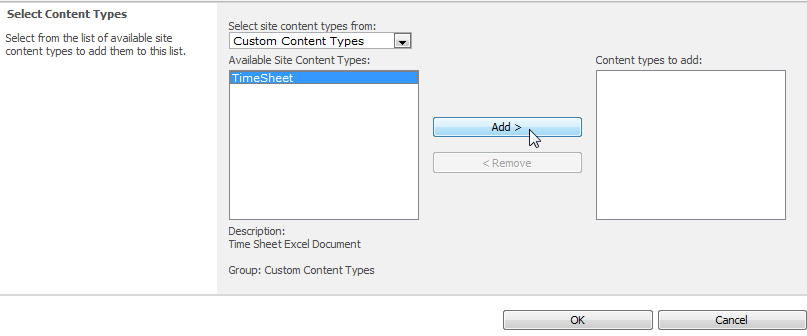
Back in the Document Library Setting dialog under Content Types, click Add from existing site content types.In the Available Site Content Types list, select your content type and then click Add.

Step 5:
Now we can see the new content type on the New Document menu.


 Ravichandran Blog