Step 1
Download and install following Visual Studio 2010 plugins
Visual Studio 2010 SharePoint Power Tools
Silverlight SharePoint Web Parts
Step 2
Create new Silverlight project and then create new Empty SharePoint Project in sandbox Solution
Step 3
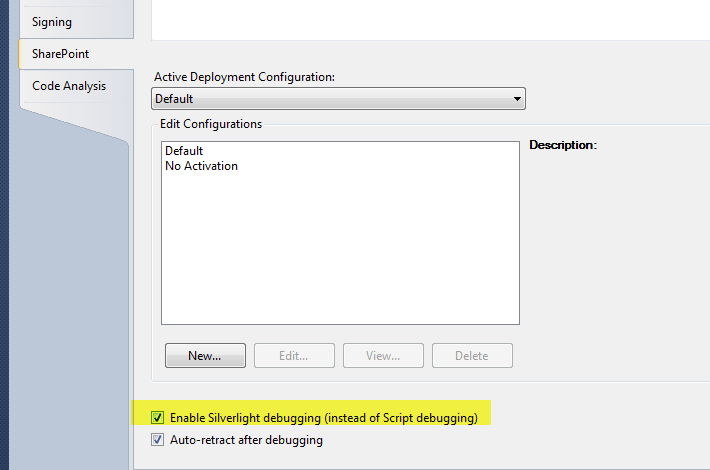
Right click SharePoint Project then Click Properties SharePoint tab Check Enable Silverlight Debugging
Step 4
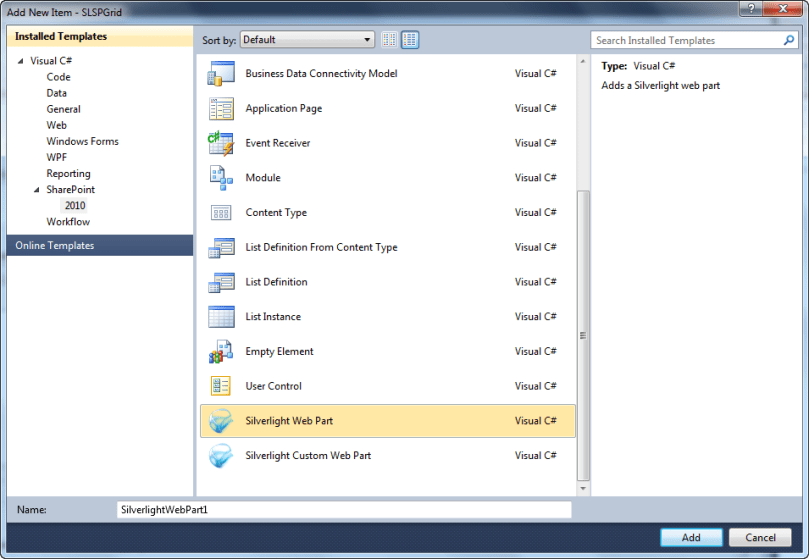
SharePoint Project Create new item of Silverlight webpart
Step 5
Add reference in SharePoint Silverlight OM dll in “C:\Program Files\Common Files\Microsoft Shared\Web Server Extensions\14\TEMPLATE\LAYOUTS\ClientBin”
following location
Step 6
Add Following Code in Silverlight Project App.xaml.cs at Application_Startup function
ApplicationContext.Init(e.InitParams, SynchronizationContext.Current);

Step 7
Set as Startup in SharePoint Project, now we can run (f5) then navigate “Site pages” then we can see then new page relevant name of project,We can access the page for debugging.



 Ravichandran Blog