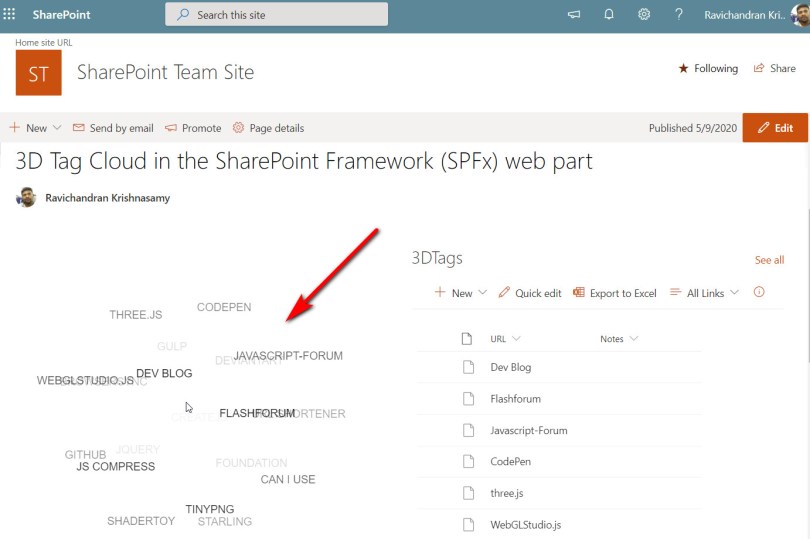
Tag: JQUERY
SharePoint List to JQuery Chart SharePoint Add In
JQuery Chart is easy to implement as a SharePoint Add In, in this sample I have retrieved SharePoint list data and formed it as JSON data and then JSON data object is passed into JQuey chart as input parameter. we can implement various type of chart using JQuery chart for as example bar, circle, line, doughnut, etc,… Here I’m going to explain detail about this SharePoint Add-In implementation.
You can download complete source code from the below URL
 https://code.msdn.microsoft.com/SharePoint-List-to-JQuery-90bfd45f

To create new project
Open visual studio 2015
On the file menu select New -> Project (Ctrl + Shift + N)
In the New Project window select or search “App for SharePoint”
In the “New App for SharePoint” wizard choose options based on your preferences
To add new resource file (.js or .css or Images) into project
Select a folder from solution explorer based on your file type (Images or Scripts or Content for CSS)
Right click and select “Open Folder in File Explorer” option
Now paste your files into the folder
Again in the solution explorer window at the top, click “Show All Files” icon
Now you can find the file without active icon, right click and select “Include in Project” Option
Solution compatibility
This sample is tested with SharePoint Online
This sample also compatible with SharePoint 2013 and SharePoint 2016
Code Flow
Fetching Host web URL and App web URL from query string
Host web content created using app web proxy
Retrieved list data from the host web
on the success event, list item collection converted as JSON data using JSON.parse
then the JSON data sent to chart js as parameter
//'use strict';

ExecuteOrDelayUntilScriptLoaded(initializePage, "sp.js");

function initializePage() {
var context = SP.ClientContext.get_current();
var user = context.get_web().get_currentUser();
var hostweburl;
var appweburl;
var appContextSite;
var list;
var listItems;
var web;


// This code runs when the DOM is ready and creates a context object which is needed to use the SharePoint object model
$(document).ready(function () {
getUrl();
});

// This function get the URL informations
function getUrl() {
hostweburl = getQueryStringParameter("SPHostUrl");
appweburl = getQueryStringParameter("SPAppWebUrl");
hostweburl = decodeURIComponent(hostweburl);
appweburl = decodeURIComponent(appweburl).toString().replace("#", "");
var scriptbase = hostweburl + "/_layouts/15/";
$.getScript(scriptbase + "SP.RequestExecutor.js", execOperation);
}

// This function get list data from SharePoint
function execOperation() {
var factory = new SP.ProxyWebRequestExecutorFactory(appweburl);
context.set_webRequestExecutorFactory(factory);
appContextSite = new SP.AppContextSite(context, hostweburl);
web = appContextSite.get_web();
context.load(web);
var camlQuery = new SP.CamlQuery();
list = web.get_lists().getByTitle("Post Reach");
listItems = list.getItems(camlQuery);
context.load(list);
context.load(listItems);
context.executeQueryAsync(onGetSPListSuccess, onGetSPListFail);
}


// This function is executed if the above call is successful
function onGetSPListSuccess() {
$("#DivSPGrid").empty();
var chartlabel = '';
var chartdata1 = '';
var chartdata2 = '';
var barChartData = '';
var listEnumerator = listItems.getEnumerator();
chartlabel = "{\"labels\":[";
chartdata1 = "],\"datasets\":[{" +
"\"fillColor\":\"rgba(220,220,220,0.5)\"," +
"\"strokeColor\":\"rgba(220,220,220,0.8)\"," +
"\"highlightFill\":\"rgba(220,220,220,0.75)\"," +
"\"highlightStroke\":\"rgba(220,220,220,1)\"," +
"\"data\":[";
chartdata2 = "]},{" +
"\"fillColor\":\"rgba(151,187,205,0.5)\"," +
"\"strokeColor\":\"rgba(151,187,205,0.8)\"," +
"\"highlightFill\":\"rgba(151,187,205,0.75)\"," +
"\"highlightStroke\":\"rgba(151,187,205,1)\"," +
"\"data\":[";
while (listEnumerator.moveNext()) {
var listItem = listEnumerator.get_current();
chartlabel += "\"" + listItem.get_item("Title") + "\",";
chartdata1 += listItem.get_item("Facebook") + ",";
chartdata2 += listItem.get_item("Twitter") + ",";
}
chartlabel = chartlabel.replace(/,\s*$/, "");
chartdata1 = chartdata1.replace(/,\s*$/, "");
chartdata2 = chartdata2.replace(/,\s*$/, "");
var str = chartlabel + chartdata1 + chartdata2 + ']}]}';
barChartData = JSON.parse(str);
var ctx = document.getElementById("chartCanvas").getContext("2d");
window.myBar = new Chart(ctx).Bar(barChartData, { responsive: true });
}

// This function is executed if the above call fails
function onGetSPListFail(sender, args) {
alert('Failed to get list data. Error:' + args.get_message());
}

//This function split the url and trim the App and Host web URLs
function getQueryStringParameter(paramToRetrieve) {
var params =
document.URL.split("?")[1].split("&");
for (var i = 0; i < params.length; i = i + 1) {
var singleParam = params[i].split("=");
if (singleParam[0] == paramToRetrieve)
return singleParam[1];
}
}
}
<%-- The following 4 lines are ASP.NET directives needed when using SharePoint components --%>

<%@ Page Inherits="Microsoft.SharePoint.WebPartPages.WebPartPage, Microsoft.SharePoint, Version=15.0.0.0, Culture=neutral, PublicKeyToken=71e9bce111e9429c" MasterPageFile="~masterurl/default.master" Language="C#" %>

<%@ Register TagPrefix="Utilities" Namespace="Microsoft.SharePoint.Utilities" Assembly="Microsoft.SharePoint, Version=15.0.0.0, Culture=neutral, PublicKeyToken=71e9bce111e9429c" %>
<%@ Register TagPrefix="WebPartPages" Namespace="Microsoft.SharePoint.WebPartPages" Assembly="Microsoft.SharePoint, Version=15.0.0.0, Culture=neutral, PublicKeyToken=71e9bce111e9429c" %>
<%@ Register TagPrefix="SharePoint" Namespace="Microsoft.SharePoint.WebControls" Assembly="Microsoft.SharePoint, Version=15.0.0.0, Culture=neutral, PublicKeyToken=71e9bce111e9429c" %>

<%-- The markup and script in the following Content element will be placed in the <head> of the page --%>
<asp:Content ContentPlaceHolderID="PlaceHolderAdditionalPageHead" runat="server">
<script type="text/javascript" src="../Scripts/jquery-1.9.1.min.js"></script>
 <SharePoint:ScriptLink Name="sp.js" runat="server" OnDemand="true" LoadAfterUI="true" Localizable="false" />
 <meta name="WebPartPageExpansion" content="full" />

 <!-- Add your CSS styles to the following file -->
 	<link rel="Stylesheet" type="text/css" href="../Content/App.css" />

 <!-- Add your JavaScript to the following file -->
 <script type="text/javascript" src="../Scripts/App.js"></script>
<script type="text/javascript" src="../Scripts/Chart.js"></script>
</asp:Content>

<%-- The markup in the following Content element will be placed in the TitleArea of the page --%>
<asp:Content ContentPlaceHolderID="PlaceHolderPageTitleInTitleArea" runat="server">
SPListItemCollection to JQuery Chart SharePoint Add In
</asp:Content>

<%-- The markup and script in the following Content element will be placed in the <body> of the page --%>
<asp:Content ContentPlaceHolderID="PlaceHolderMain" runat="server">
<div style="width: 50%">
<canvas id="chartCanvas" height="300" width="450"></canvas>
</div>
</asp:Content>
You can download complete source code from the below URL
https://code.msdn.microsoft.com/SharePoint-List-to-JQuery-90bfd45f
Hope you find this article helpful, check out my other articles too.
Like my Facebook page to get future articles notification
Let me know your Queries and feedback in comments
Notification and Status messages SharePoint Add In
Introduction
There are multiple ways we can show notifications or status from SharePoint Add In, in this article we can find more detail about SharePoint Out of box notification, status and JQuery notification implementation logic
You can download complete source code from the below URL
 https://code.msdn.microsoft.com/Notification-and-Status-34bd280f
Solution compatibility
This sample is tested with SharePoint Online
This sample also compatible with SharePoint 2013 and SharePoint 2016
To create new project
Open visual studio 2015
On the file menu select New -> Project (Ctrl + Shift + N)
In the New Project window select or search “App for SharePoint”
In the “New App for SharePoint” wizard choose options based on your preferences
To add new resource file (.js or .css or Images) into project
Select a folder from solution explorer based on your file type (Images or Scripts or Content for CSS)
Right click and select “Open Folder in File Explorer” option
Now paste your files into the folder
Again in the solution explorer window at the top, click “Show All Files” icon
Now you can find the file without active icon, right click and select “Include in Project” Option

In the aspx page I have added six buttons and one text box to execute this sample and “notify.min.js” file added into project and refereed as script file reference.
<%-- The following 4 lines are ASP.NET directives needed when using SharePoint components --%>

<%@ Page Inherits="Microsoft.SharePoint.WebPartPages.WebPartPage, Microsoft.SharePoint, Version=15.0.0.0, Culture=neutral, PublicKeyToken=71e9bce111e9429c" MasterPageFile="~masterurl/default.master" Language="C#" %>

<%@ Register TagPrefix="Utilities" Namespace="Microsoft.SharePoint.Utilities" Assembly="Microsoft.SharePoint, Version=15.0.0.0, Culture=neutral, PublicKeyToken=71e9bce111e9429c" %>
<%@ Register TagPrefix="WebPartPages" Namespace="Microsoft.SharePoint.WebPartPages" Assembly="Microsoft.SharePoint, Version=15.0.0.0, Culture=neutral, PublicKeyToken=71e9bce111e9429c" %>
<%@ Register TagPrefix="SharePoint" Namespace="Microsoft.SharePoint.WebControls" Assembly="Microsoft.SharePoint, Version=15.0.0.0, Culture=neutral, PublicKeyToken=71e9bce111e9429c" %>

<%-- The markup and script in the following Content element will be placed in the <head> of the page --%>
<asp:Content ContentPlaceHolderID="PlaceHolderAdditionalPageHead" runat="server">
<script type="text/javascript" src="../Scripts/jquery-1.9.1.min.js"></script>
 <SharePoint:ScriptLink Name="sp.js" runat="server" OnDemand="true" LoadAfterUI="true" Localizable="false" />
 <meta name="WebPartPageExpansion" content="full" />

 <!-- Add your CSS styles to the following file -->
 	<link rel="Stylesheet" type="text/css" href="../Content/App.css" />

 <!-- Add your JavaScript to the following file -->
 <script type="text/javascript" src="../Scripts/App.js"></script>
<script type="text/javascript" src="../Scripts/notify.min.js"></script>
</asp:Content>

<%-- The markup in the following Content element will be placed in the TitleArea of the page --%>
<asp:Content ContentPlaceHolderID="PlaceHolderPageTitleInTitleArea" runat="server">
Notification and Status messages SharePoint Add In
</asp:Content>

<%-- The markup and script in the following Content element will be placed in the <body> of the page --%>
<asp:Content ContentPlaceHolderID="PlaceHolderMain" runat="server">
<div id="divNotification">
<input type="button" name="btnAddNotification" id="btnAddNotification" value="Add Notification" />
</div>
<div id="divStatus">
<input type="button" name="btnAddStatus" id="btnAddStatus" value="Add Status" />
<input type="button" name="btnModifyStatus" id="btnModifyStatus" value="Modify Status" />
<input type="button" name="btnStatusColour" id="btnStatusColour" value="Change Status Colour" />
<input type="button" name="btnRemoveStatus" id="btnRemoveStatus" value="Remove Status" />
</div>
<div id="divJQueryStatus">
<input type="button" name="btnAddStatus" id="btnJQueryStatus" value="Add Status" />
</div>
<input type="text" id="txtName" value="" />

</asp:Content>
In the App.js file (which is located under scripts folder) cleanup all unnecessary code, and using css selector select buttons and write functions inside click event.
SharePoint Out of Box Status
SP.UI.Status class provides methods for managing status messages. while we pass the color name as parameter to methods use lower case, Ex: red, green… if you pass it as “Red” then JavaScript won’t recognize it,because JavaScript is case sensitive.
SharePoint Out of Box Notification
SP.UI.Notify calss provides methods for managing notifications, we can pass notification message as HTML and by default, notifications appear for five seconds also we have option to adjusting this time
JQuery Notification
Notify.min.js used for JQuery notification, we can get extreme level of flexibility when we use JQuery notification also it is very simple to call with varies parameter. We can call any corner of the window or any side of the element
'use strict';

ExecuteOrDelayUntilScriptLoaded(initializePage, "sp.js");

function initializePage() {

//This function creates a new notification on your this Add-In
$('#btnAddNotification').click(function () {
//The message inside the notification.
var strHtml = "<img width='15px' src=\"../Images/loading.gif\" /> Loading <b>please wait...</b>";
//Specifies whether the notification stays on the page until removed.
var bSticky = false;
//Adds a notification to the page. By default, notifications appear for five seconds.
SP.UI.Notify.addNotification(strHtml, bSticky);
});
//The ID of the status to update.
var spstatus;
//this function Adds a status message to the Add-in page.
$('#btnAddStatus').click(function () {
//The title of the status message.
var strTitle = "SPTECHNET";
//The contents of the status message.
var strHtml = "New Status <b>massage</b>";
//Specifies whether the status message will appear at the beginning of the list.
var atBegining = true;
spstatus = SP.UI.Status.addStatus(strTitle, strHtml, atBegining);
//The color to set for the status message.
SP.UI.Status.setStatusPriColor(spstatus, "green");
});

$('#btnModifyStatus').click(function () {
//The new status message.
var strHtml = "Modified Status <b>massage</b>";
//Updates the specified status message.
SP.UI.Status.updateStatus(spstatus, strHtml);
//The color to set for the status message.
SP.UI.Status.setStatusPriColor(spstatus, "blue");
});

$('#btnStatusColour').click(function () {
var strColor = "red";
//The color to set for the status message.
SP.UI.Status.setStatusPriColor(spstatus, strColor);
});

$('#btnRemoveStatus').click(function () {
//Removes all status messages from the page.
SP.UI.Status.removeAllStatus(true);
});

$('#btnJQueryStatus').click(function () {
//Show JQuery status messages from the page.
$.notify("Access granted", "success");
$.notify("Warning: Self-destruct in 3.. 2..", "warn");
$('#txtName').notify("This field is required", "info");
$.notify("BOOM!", {
// whether to hide the notification on click
clickToHide: true,
// whether to auto-hide the notification
autoHide: false,
// if autoHide, hide after milliseconds
autoHideDelay: 5000,
// show the arrow pointing at the element
arrowShow: true,
// arrow size in pixels
arrowSize: 5,
// position defines the notification position though uses the defaults below
position: 'top right',
// default positions
elementPosition: 'top right',
globalPosition: 'top right',
// default style
style: 'bootstrap',
// default class (string or [string])
className: 'error',
// show animation
showAnimation: 'slideDown',
// show animation duration
showDuration: 400,
// hide animation
hideAnimation: 'slideUp',
// hide animation duration
hideDuration: 200,
// padding between element and notification
gap: 2
});
});
}
You can download complete source code from the below URL
https://code.msdn.microsoft.com/Notification-and-Status-34bd280f
Hope you find this article helpful, check out my other articles too.
Like my Facebook page to get future articles notification
Let me know your Queries and feedback in comments
 Ravichandran Blog